
Sometimes I need to move files from my phone that runs GrapheneOS to my Arch Linux machine. That’s mostly a couple of photos every now and then. Once I have them on my machine, I back them up, annotate and process them. Here are my requirements:
- I want it to be easy
- I don’t want to sign up anywhere
- I don’t want to use other people’s infrastructure
- I want the solution to be light weight
- I want the solution to be FOSS
TL;DR
1
2
3
4
5
6
7
8
9
10
11
12
BASE_URL=http://192.168.1.149:53317/api/localsend/v2
SESSION_ID=5a9606ab-f683-4045-8f72-5a6a2ace9c39

curl -X POST --silent $BASE_URL/prepare-download?sessionId=$SESSION_ID |
  jq -c ".files[] | {id, fileName}" |
  while read -r FILE_JSON
  do
    FILE_ID=$(echo $FILE_JSON | jq -r .id)
    FILE_NAME=$(echo $FILE_JSON | jq -r .fileName)

    wget -O $FILE_NAME "${BASE_URL}/download?sessionId=${SESSION_ID}&fileId=${FILE_ID}"
  done
This is a simple solution in Bash. See the next post to see this problem solved with Ruby.
How I got there
Mobile Installation
I head on over to the F-Droid app store where everything is FOSS (but might include anti-features) and start searching.
I find LocalSend. I like it:
- it has most of what I need already in it’s name
- it’s has nice UI
- it’s up to date
- looks we’ll maintained
It installs and runs fine on my phone. I’m going to use it.
Desktop Installation
I want to install the client for Linux. It even supports installation via Nix shell, nice!👌😍
Let’s see if it works.
Start a Nix shell with
localsendpackage.
Run the
localsendLinux client
1
2
3
4
[nix-shell]$ localsend
** (localsend_app:2): WARNING **: 16:10:59.933: Failed to start Flutter renderer: No available configurations for the given pixel format

[nix-shell]$
Doesn’t work: nothing happens. It seems like an issue with Flutter renderer. It’s probably missing entirely or is missing configuration. I don’t want to go deeper ATM. Let’s install the client from another source. Since I’m running Arch Linux, installing via yay seems like a good second option.
Let’s see if it resolves the issue.
Install
localsendviayay
Here we go again:
Run the
localsendLinux client
1
2
3
4
5
6
7
8
9
10
11
12
13
14
15
$ localsend
(localsend_app:346199): Gdk-CRITICAL **: 18:15:03.599: gdk_window_get_state: assertion 'GDK_IS_WINDOW (window)' failed
libGL error: DRI driver not from this Mesa build ('23.1.3' vs '23.1.6-arch1.4')
libGL error: failed to load driver: radeonsi
libGL error: DRI driver not from this Mesa build ('23.1.3' vs '23.1.6-arch1.4')
libGL error: failed to load driver: radeonsi
libGL error: DRI driver not from this Mesa build ('23.1.3' vs '23.1.6-arch1.4')
libGL error: failed to load driver: swrast

** (localsend_app:346199): WARNING **: 18:15:03.752: Failed to start Flutter renderer: Unable to create a GL context

** (localsend_app:346199): WARNING **: 18:15:28.754: atk-bridge: get_device_events_reply: unknown signature
^C

$
I always love it when I see CRITICAL in all caps. 😇😌
I get more errors this time: libGL is having issues. The Flutter issue is not going away either. I really don’t want to deal with this. I just want to transfer files over my local network, I don’t want to pollute my system with Flutter dependencies, DRI drivers or whatever else to achieve this simple goal.
I understand that the desktop client has some fancy features. Perhaps I’ll have a look at the dedicated Linux client some other day, but for now I only need a simple way to move files from my phone to my desktop.
Share “via link”
I have my last look at LocalSend, before looking for another solution and I see there’s the option to share files “via link”.
Here’s how it works:
- Connect to your phone to the same network your PC is on 😅
- I’ll assume encryption is not needed, so using
httpis fine. Note that share “via link” supportshttpstoo. - Select the files you want to share on your phone
![]()
- Select the Share via link in the gear icon ⚙️ drop-down
![]()
- Locate the address on your phone screen. In my case that’s
http://192.168.1.150:53317![]()
- On your desktop, you navigate to the displayed address:
http://192.168.1.150:53317![]()
- On your phone, the desktop will appear in the requests section and should be approved
![]()
- On your phone, the desktop will be marked as “accepted”
![]()
- Download the files on your desktop via the browser
![]()
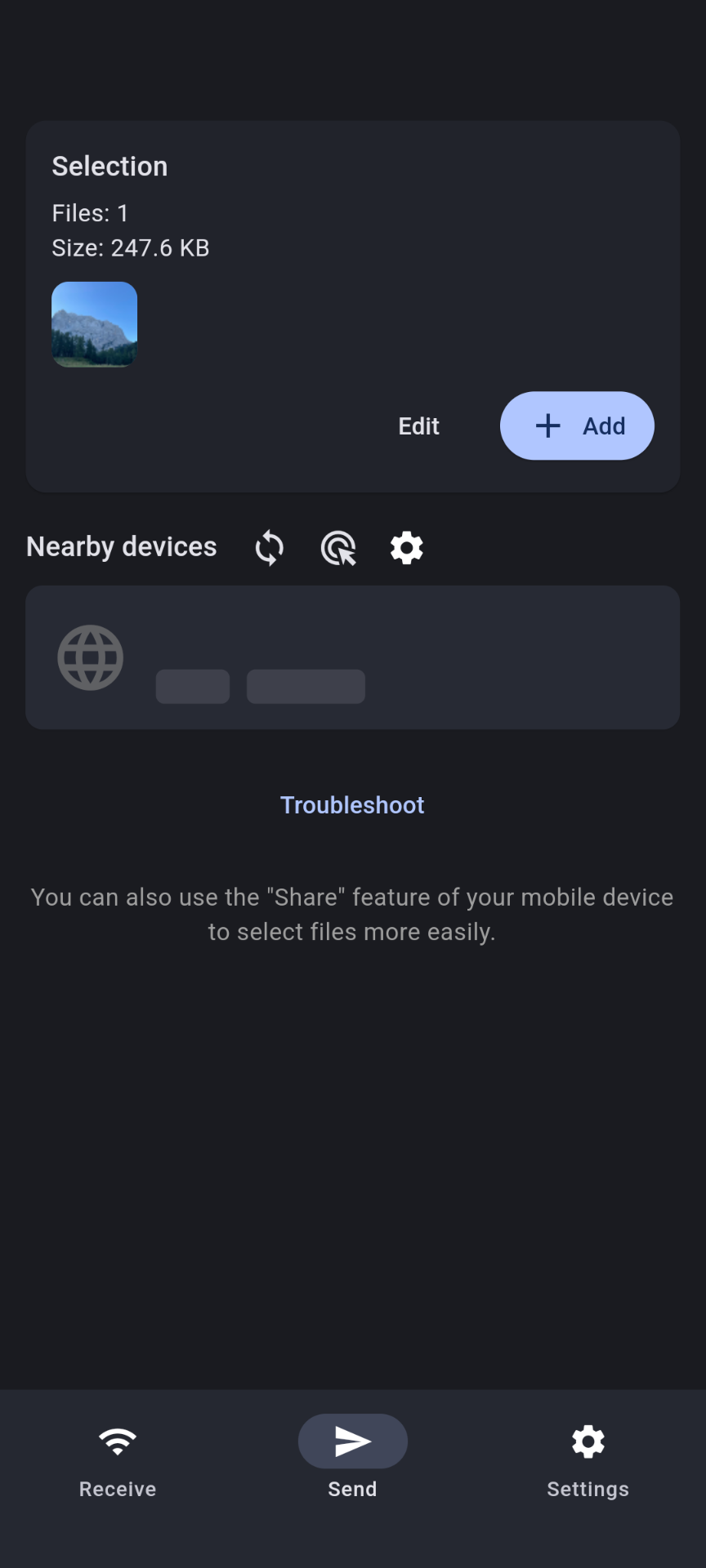
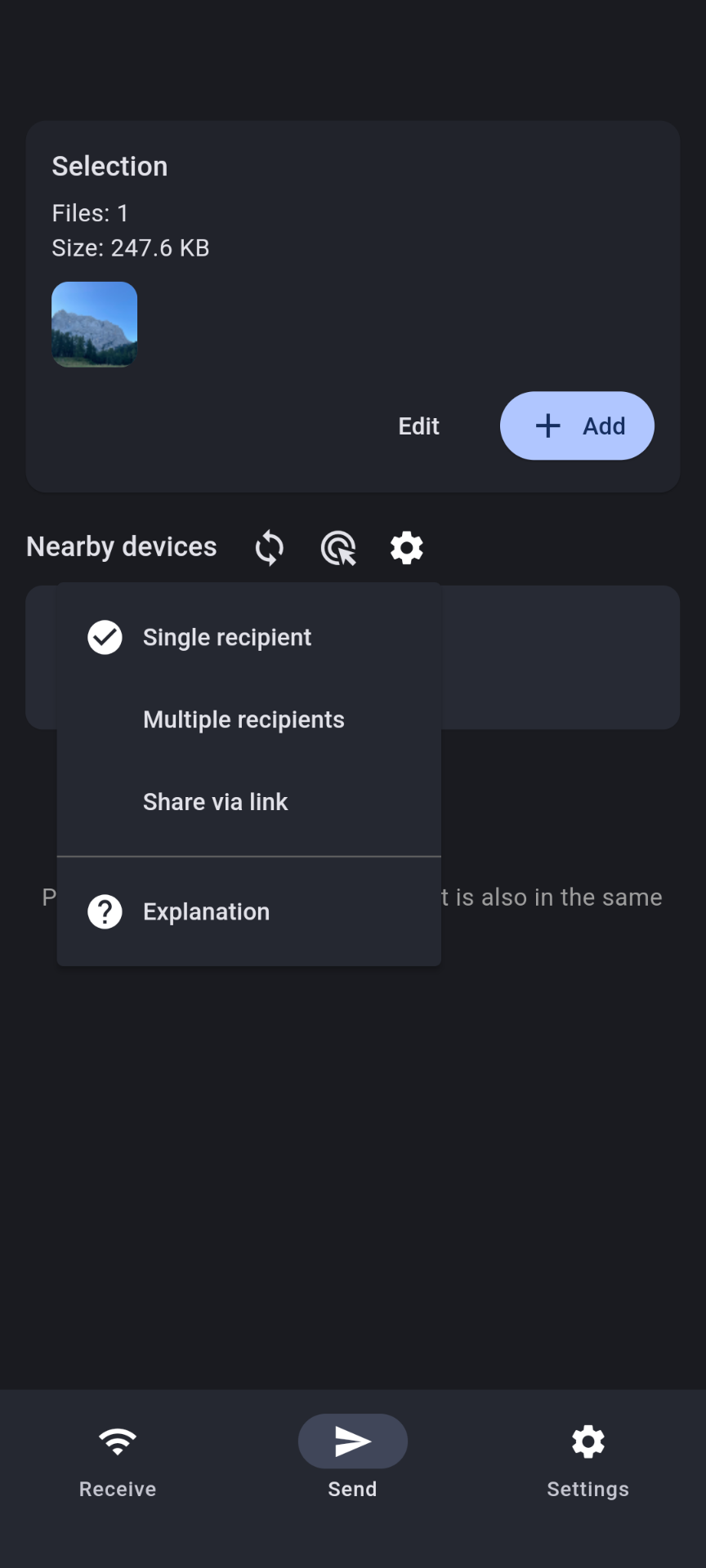
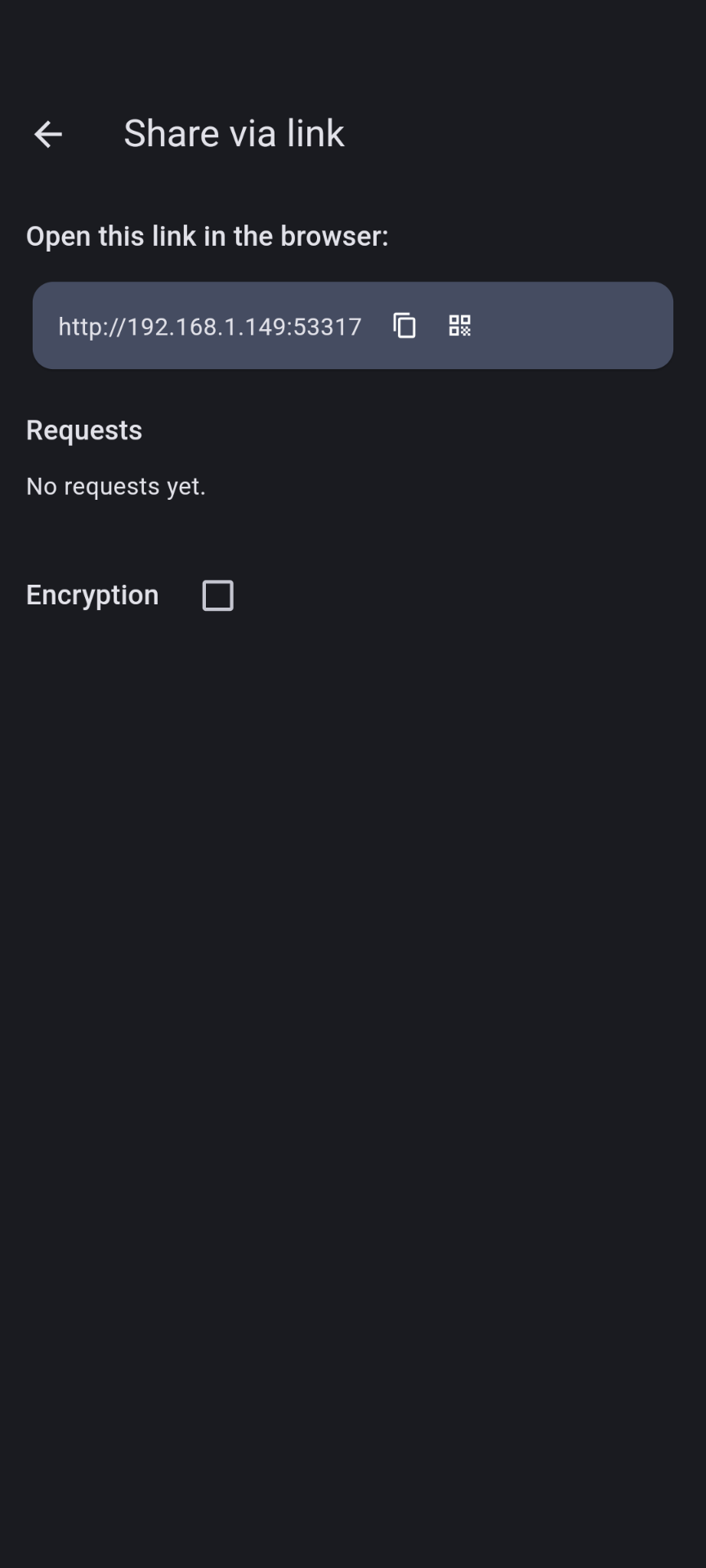
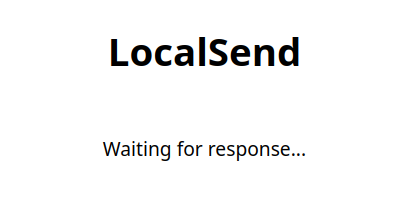
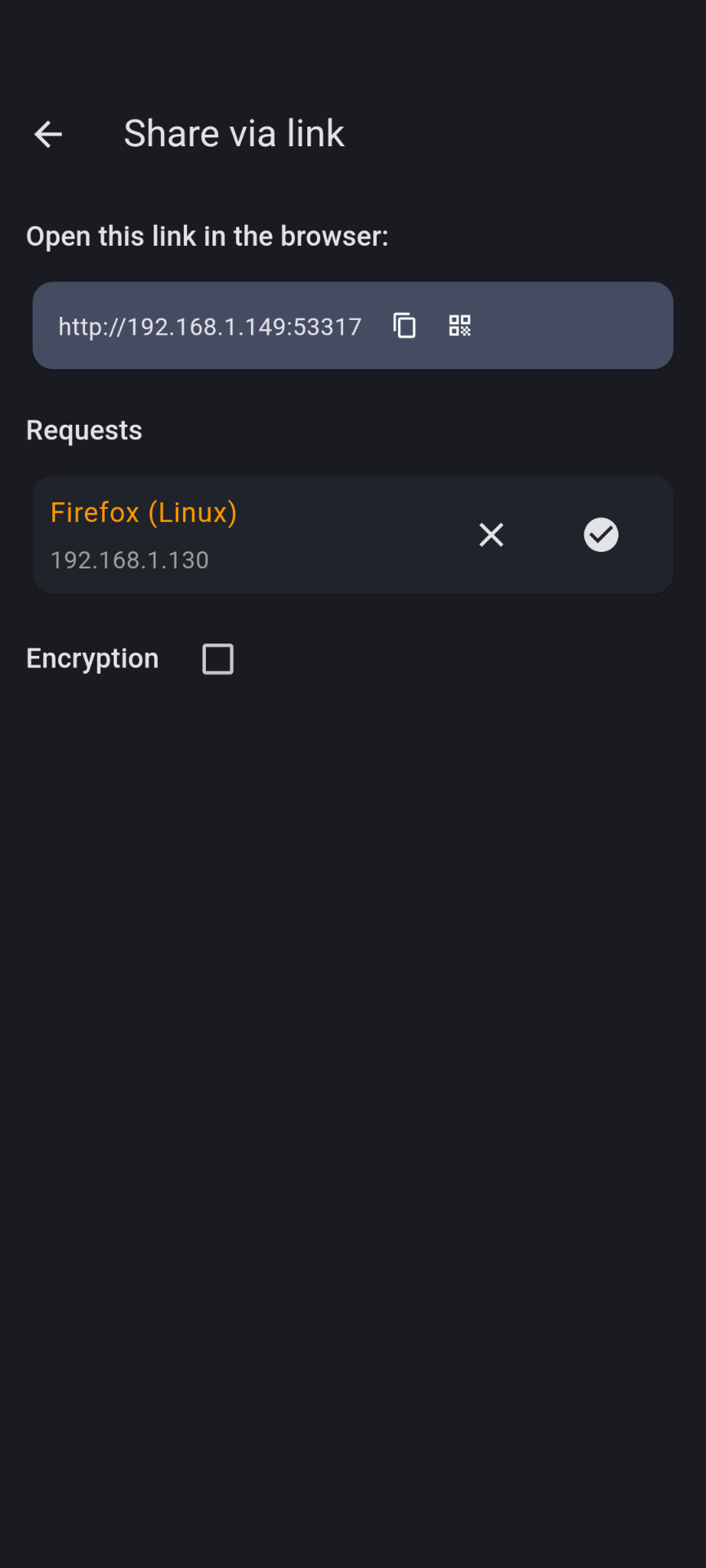
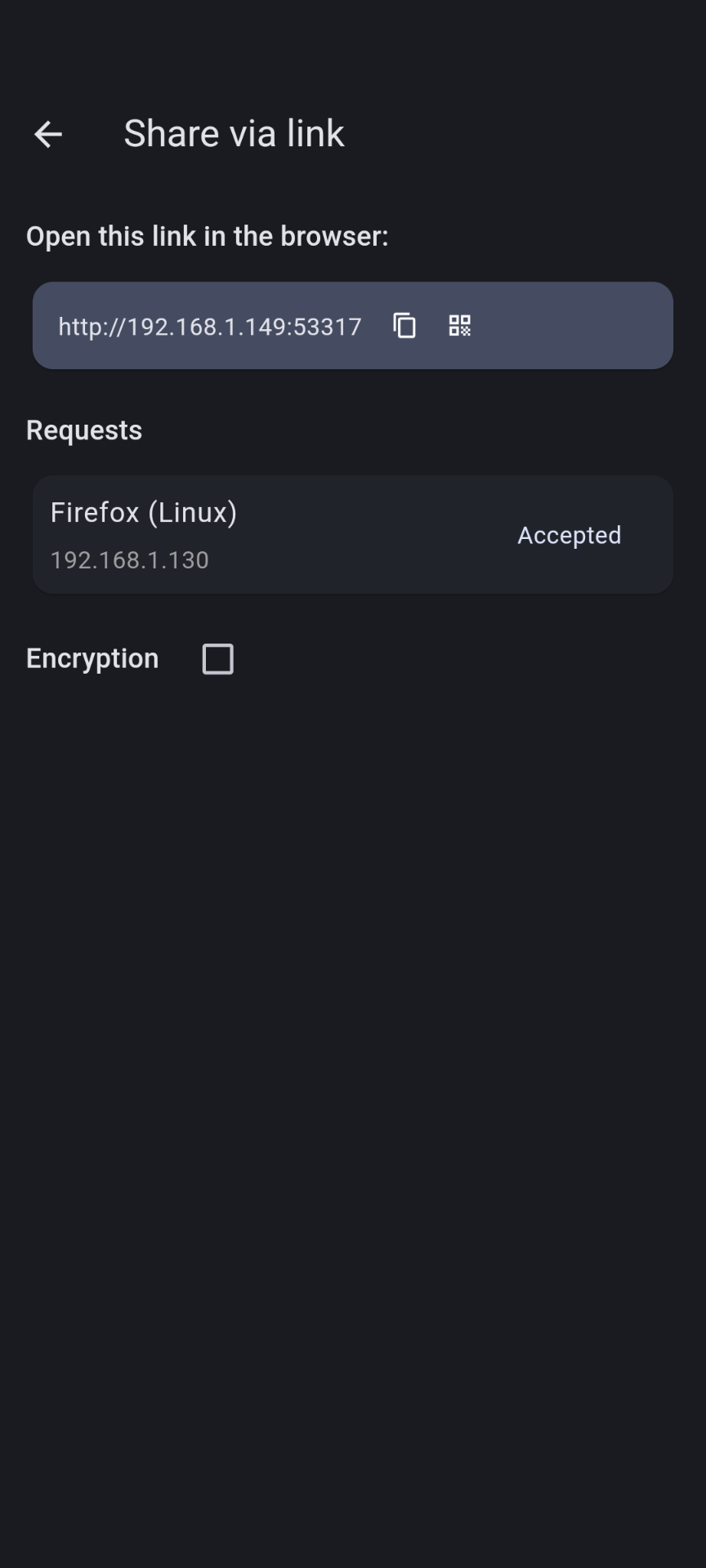
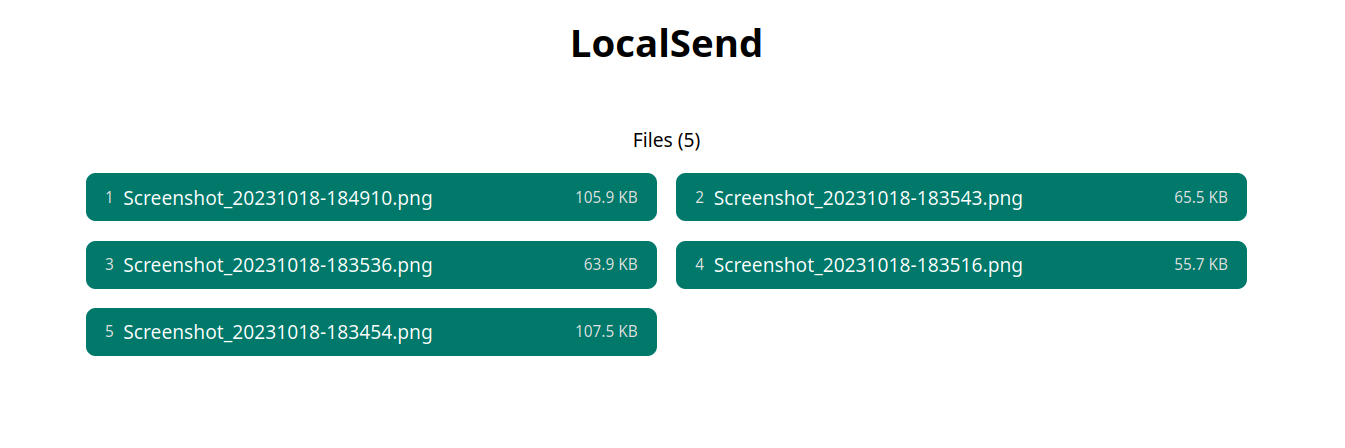
OK… I could work with that. Time for me to transfer some files 👨💻
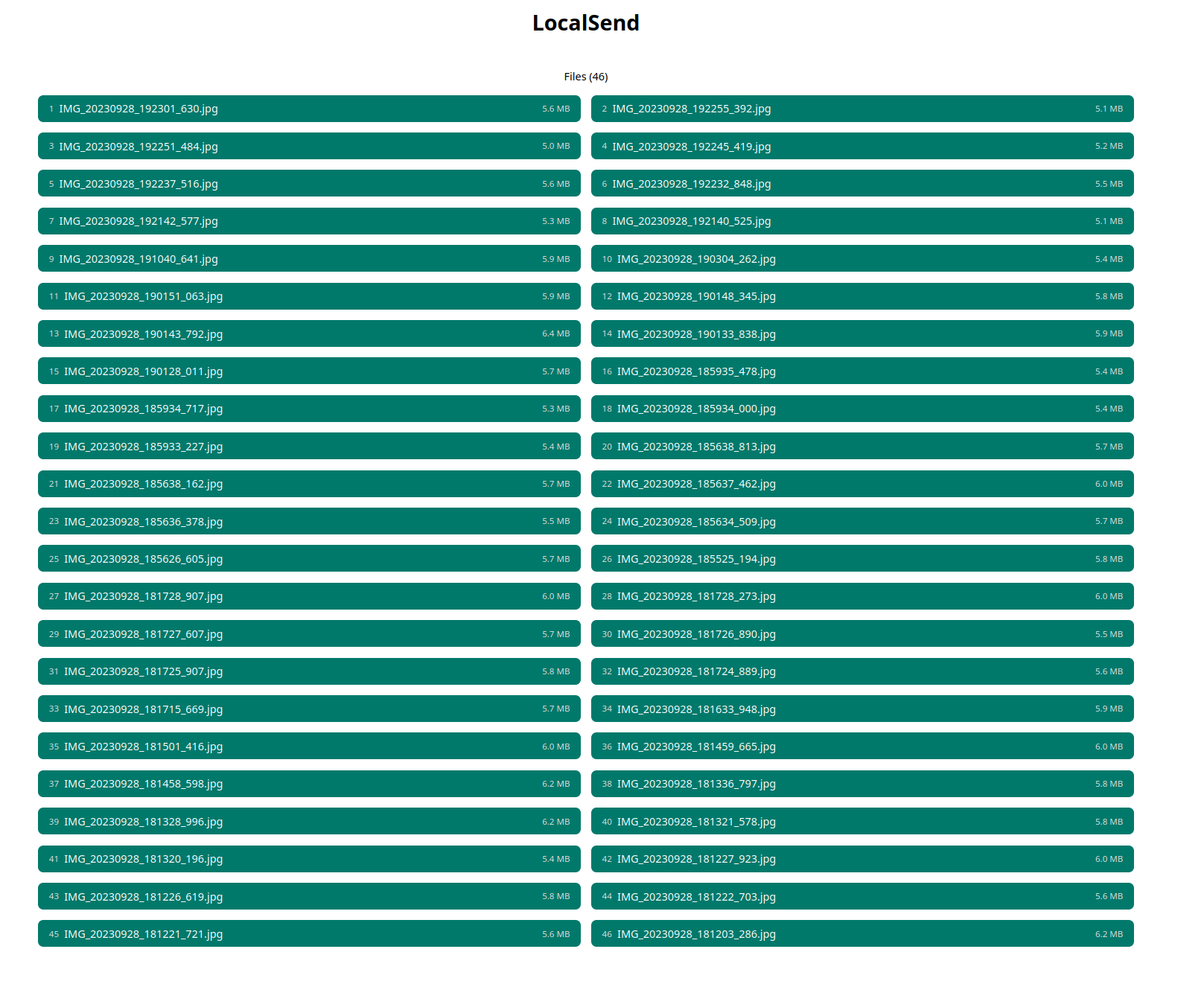
That’s weird; No “download all button” 🤦♂️ I won’t click on each file in order for it to download. Even thinking about it feels wrong. There has to be a way to do this automatically.🤔
Scripting
Bash helps those who help themselves
I’ll start by parsing some HTML, retrieving those download links should be fairly straightforward.
1
2
3
4
5
6
$ curl 192.168.1.149:53317
...
<noscript>
    This site requires JavaScript. I will only be visible if you have it disabled.
</noscript>
...
That’s unfortunate! JavaScript is disabled. I’ll need to get the file list some other way.
I open the development tools, network tab. There’s a POST request made to prepare-download?sessionId=some-u-u-i-d. Firefox even let’s me copy the request as cURL (right click -> copy value -> copy as cURL).
I strip away all the headers and this is what I’m left with:
1
curl -X POST 'http://192.168.1.149:53317/api/localsend/v2/prepare-download?sessionId=5a9606ab-f683-4045-8f72-5a6a2ace9c39'
And it works! Here’s the response:
1
2
3
4
5
6
7
8
9
10
11
12
13
14
15
16
17
18
19
20
21
22
23
24
25
26
27
28
29
30
31
32
33
34
35
36
37
38
{
  "info": {
  // ... omitted ...
  },
  "sessionId": "5a9606ab-f683-4045-8f72-5a6a2ace9c39",
  "files": {
    "efcebeaf-e0bb-4a89-88de-d25df14c87eb": {
      "id": "efcebeaf-e0bb-4a89-88de-d25df14c87eb",
      "fileName": "Screenshot_20231018-184910.png",
      "size": 108484,
      "fileType": "image/png"
    },
    "106a2152-17b0-4fc6-ab34-ebb31ab56673": {
      "id": "106a2152-17b0-4fc6-ab34-ebb31ab56673",
      "fileName": "Screenshot_20231018-183543.png",
      "size": 67070,
      "fileType": "image/png"
    },
    "86954c5e-38e0-4f6c-9087-b48003ea2813": {
      "id": "86954c5e-38e0-4f6c-9087-b48003ea2813",
      "fileName": "Screenshot_20231018-183536.png",
      "size": 65403,
      "fileType": "image/png"
    },
    "8e476a91-cbe5-40c2-bbe6-c0e3a02ba78e": {
      "id": "8e476a91-cbe5-40c2-bbe6-c0e3a02ba78e",
      "fileName": "Screenshot_20231018-183516.png",
      "size": 57041,
      "fileType": "image/png"
    },
    "1e5f044d-b093-4934-8901-dc8c4d28fbeb": {
      "id": "1e5f044d-b093-4934-8901-dc8c4d28fbeb",
      "fileName": "Screenshot_20231018-183454.png",
      "size": 110123,
      "fileType": "image/png"
    }
  }
}
Seems like I have everything I need here. Let’s make cURLs output silent and format the JSON response with jq.
1
curl -X POST --silent 'http://192.168.1.149:53317/api/localsend/v2/prepare-download?sessionId=5a9606ab-f683-4045-8f72-5a6a2ace9c39' | jq .
In order to download the files, I need the download URL for each file. After inspecting the HTML, I found it has the following format: /api/localsend/v2/download?sessionId=some-u-u-i-d&fileId=file-id-from-the-json-payload. /api/localsend/v2/download path does not change. sessionId and fileId parameters have to be passed dynamically.
I already have the sessionId. What I need now is to get the fileId, from the JSON response. jq will help me with that:
1
2
curl -X POST --silent 'http://192.168.1.149:53317/api/localsend/v2/prepare-download?sessionId=5a9606ab-f683-4045-8f72-5a6a2ace9c39' |
  jq -c ".files[] | {id}"
Which gives me the following:
1
2
3
4
5
{"id":"efcebeaf-e0bb-4a89-88de-d25df14c87eb"}
{"id":"106a2152-17b0-4fc6-ab34-ebb31ab56673"}
{"id":"86954c5e-38e0-4f6c-9087-b48003ea2813"}
{"id":"8e476a91-cbe5-40c2-bbe6-c0e3a02ba78e"}
{"id":"1e5f044d-b093-4934-8901-dc8c4d28fbeb"}
All we need to do now is to call wget for each constructed download URL to download the file. The download URL can be constructed via the while read -r <variable_name> loop. I’ll also extract the sessionId as well as the base URL to make the script cleaner. I also don’t need the fileId in JSON format, so I’ll change the jq command to return just the fileId.
1
2
3
4
5
6
7
8
9
BASE_URL=http://192.168.1.149:53317/api/localsend/v2
SESSION_ID=5a9606ab-f683-4045-8f72-5a6a2ace9c39

curl -X POST --silent $BASE_URL/prepare-download?sessionId=$SESSION_ID |
  jq -rc ".files[].id" |
  while read -r FILE_ID
  do
    wget "${BASE_URL}/download?sessionId=${SESSION_ID}&fileId=${FILE_ID}"
  done
File download works. What I don’t like about this implementation is that file names won’t be preserved with the transfer. By default wget will name the downloaded file <fileId>.jpg. For example: efcebeaf-e0bb-4a89-88de-d25df14c87eb.jpg, which is not ideal. Let’s fix that.🔧
The original file name is present as the fileName attribute in the JSON response above. Now it’s only a question of using fileId and fileName in the script correctly. I filter the JSON response down to just the relevant fields: fileId and fileName. I then assign those values to variables. Remember to use the jq -r flag here, otherwise you’ll have to strip the quotations ", which is how jq outputs strings by default.
1
2
3
4
$ echo '{"asdf": "asdf"}' | jq  .asdf
"asdf"
$ echo '{"asdf": "asdf"}' | jq -r .asdf
asdf
1
2
3
4
5
6
7
8
9
10
11
12
BASE_URL=http://192.168.1.149:53317/api/localsend/v2
SESSION_ID=5a9606ab-f683-4045-8f72-5a6a2ace9c39

curl -X POST --silent $BASE_URL/prepare-download?sessionId=$SESSION_ID |
  jq -c ".files[] | {id, fileName}" |
  while read -r FILE_JSON
  do
    FILE_ID=$(echo $FILE_JSON | jq -r .id)
    FILE_NAME=$(echo $FILE_JSON | jq -r .fileName)

    wget -O $FILE_NAME "${BASE_URL}/download?sessionId=${SESSION_ID}&fileId=${FILE_ID}"
  done
I parse both the fileId and the fileName and assign them to variables respectively. wget -O is shorthand for wget --output-document=<name>. To be more precise about it: wget -O file.txt http://foo is analogous to wget -O - http://foo > file.txt, where - stands for printing to the standard output. But that’s besides the point. What’s important is that it does what you would expect. File names are set correctly!🙌
And there you have it. This script will download all of the exposed files, to the directory where it is executed.
Discussion
There are many downsides to this implementation and this script could be improved in many ways, but I won’t go into that.
What bothers me the most about this implementation is that I still need to open the browser and get the sessionId if I want to download anything. Though it shouldn’t be too hard to extract sessionId programmatically if I needed to.
I’ll be doing that and more in my next post.
It is not too much of an inconvenience though, I’m only using this script once every couple of weeks.
The big upside for me is that I don’t have to install any external software on my Linux machine to be able to interact with LocalSend mobile app.
This script is simple to understand, does exactly what I need and nothing more. I think that’s beautiful!